We wish you Happy Holidays & a joyful New Year!

Fix faded or blank receipts fast. Follow 7 thermal printer troubleshooting steps, from print head cleaning to paper checks, and print sharp receipts again.
October 7, 2026
John Doe
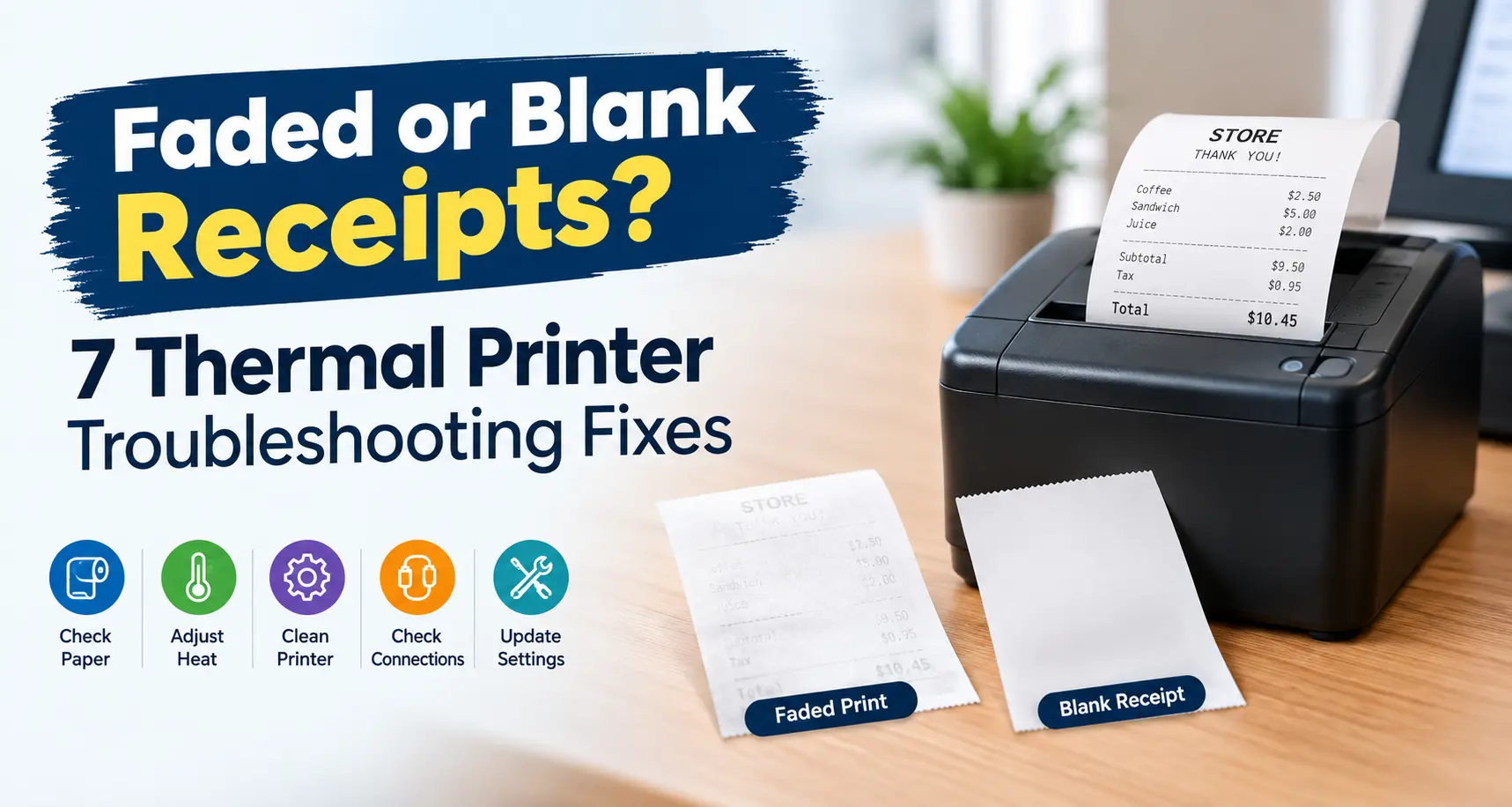
A customer holds up their receipt at checkout and squints. The total is barely there. Maybe the next slip comes out completely blank. If this sounds familiar, you are dealing with thermal receipt printing faint output, and it happens to almost every business that runs a POS system sooner or later. The good news is that receipt printer troubleshooting does not have to mean guesswork or a service call. Most causes trace back to a short list of simple, fixable problems.
This guide walks through 7 clear, practical fixes. We start with the printer itself, move through paper and settings, and end with the paper supplier behind the roll. Think of it as a complete how to fix thermal receipt printer resource built for busy managers who need answers now, not a troubleshooting manual written for engineers. Along the way, we will also point out the common fixes for POS printing that keep receipts sharp for months, not just for one lucky reload.
Thermal receipt printing faint output almost always comes down to one of three things: a dirty or worn print head, paper loaded the wrong way, or paper that is not sensitive enough for your printer's heat setting. A thermal receipt printer has no ink or ribbon, so anything that blocks heat from reaching the coating shows up right away as pale text or a blank page.
Here is the short version of how the technology works. A direct thermal printer heats a small element called the print head, and the head presses against paper coated with a heat-reactive layer. Wherever the head touches, the coating darkens. When the head is dirty, when the paper sits the wrong way up, or when the coating itself is weak, the mark never gets dark enough to read clearly. That single mechanism explains almost every receipt printer troubleshooting call that comes into service desks across retail, banking, hospitality, and logistics.
Most faded print starts with a dirty print head, not bad paper. Dust, paper fibers, and sticky residue build up on the heating element during weeks of daily use, and that layer of grime stops the head from making full, even contact with the paper surface.
Power off the thermal receipt printer and let the head cool completely before you touch it. Open the cover, remove the roll, and look for lint, dust, or debris around the head. Wipe it gently with a cotton swab or soft cloth moistened with 70% isopropyl alcohol, then let it dry fully before powering the unit back on. Never clean a head while it is hot, and be careful about static electricity while you work, since a static charge can damage the heating elements permanently. This one step resolves a large share of thermal receipt printing faint complaints without ever needing a technician visit.
A blank receipt often has nothing wrong with the printer at all. Thermal paper only reacts to heat on one side. If that coated side faces away from the print head, nothing will print no matter how new the roll is.
Scratch a corner of the paper gently with your fingernail. A gray or black mark tells you that side is coated. Reload the roll so the coated side faces the print head, following the loading diagram inside the paper bay. This mix-up is one of the most common troubleshooting tips any manufacturer can offer, because it looks like a hardware failure but takes seconds to correct. Staff who deal with thermal receipt printing faint output on a reversed roll often assume the machine is broken, when the fix is a thirty-second reload. Every thermal receipt printer on the market shares this same coated-side rule, regardless of brand. If the printer still will not produce a mark after reloading, move on to the next step in troubleshooting your thermal printer.
Loading standard bond paper into a direct thermal printer produces nothing but blank feed, since bond paper carries no heat-reactive coating at all.
If you are unsure what is loaded, run the scratch test on both sides of the roll. No mark on either side means the stock is not thermal paper. Businesses that stock both bond paper for kitchen printers and thermal paper for receipt printers on the same shelf run into this mix-up often, especially during a busy shift change. Label the two clearly and store them apart. This is one of the simplest common troubleshooting tips we can hand a team that is troubleshooting your thermal printer for the very first time, and it belongs near the top of any how to fix thermal receipt printer checklist you hand new hires. For a deeper side-by-side comparison, see FormersPaper's guide to thermal vs. bond paper rolls.
Most POS printers let you raise the print density, sometimes called darkness, directly in software. A setting left too low is a quick, easy-to-miss cause of thermal receipt printing faint output.
Check your printer's utility software or your POS system's printer settings for a density or darkness control, usually shown on a simple scale. Raise it one level at a time and print a test receipt after each change until the text looks sharp. Keep in mind that a higher density setting also raises heat load on the print head, so pair this fix with regular cleaning rather than using it alone. Density adjustments are among the fastest common fixes for POS printing, since staff can apply them without opening the printer at all.
A partial jam or a stray scrap of paper can stop the head from pressing evenly across the roll. The result usually looks like streaks, gaps, or thin lines running through the printed text.
Open the cover and check the full paper path, not just the visible roll area. Remove any torn fragments, dust, or adhesive residue left behind by label stock or a previous jam. Close the cover firmly, since a cover that does not latch all the way can also reduce contact between the paper and the head. This step belongs at the top of any list of common troubleshooting tips, because it takes under a minute and rules out a mechanical cause before anyone assumes the paper itself is defective. Any complete how to fix thermal receipt printer routine should treat this as a five-second check, done before density settings or paper sourcing come into the conversation, since obstructed heads are a fast and frequent cause of thermal receipt printing faint output.
Heat, humidity, and direct sunlight degrade the coating on thermal paper even before it reaches the printer, which means a roll can arrive at the till already weakened. Keep rolls sealed in their original wrap until they are needed, store them between roughly 68°F and 77°F, and keep them away from radiators, printers, and sunny windows. Use the oldest stock first so paper never sits in a stockroom longer than it has to. Poor storage is an easy cause to overlook during troubleshooting your thermal printer, since the printer itself is working exactly as it should. The paper simply arrived compromised, and no amount of cleaning or density adjustment fixes that.
The most overlooked fix for thermal receipt printing faint output is the paper itself. Two rolls can look identical sitting on a shelf and still perform completely differently once they reach a busy register.
Standard-sensitivity paper needs more heat to darken fully, which puts more strain on the print head and produces paler results, especially on fast printers. High-sensitivity paper reacts faster and prints darker at the same heat setting, which also extends the life of the print head. A manufacturer that controls its own coating line can hand over image density figures, GSM specs, and sensitivity grades on request. A reseller usually cannot, because it never touched production. If your team keeps running through the same receipt printer troubleshooting steps every few months on a healthy printer, the paper supplier is worth checking before you replace another machine.
Before comparing specs, remember this: thermal receipt printing faint output is usually solved by process and paper quality, not by buying a new printer. Here is what to check on any roll before it goes into a bulk order.
Width:
GSM (Weight):
Core Size:
Roll Length:
Image Density:
Image Permanence:
MOQ (Minimum Order Quantity):
Lead Time:
When a receipt looks pale or a slip comes out blank, work through these common troubleshooting tips in sequence before assuming the printer needs replacing:
Running this list from start to finish takes about ten minutes and resolves the overwhelming majority of thermal receipt printing faint calls that reach facilities and IT teams. Every thermal receipt printer eventually needs its print head replaced after enough cycles, but a well-maintained thermal receipt printer can outlast its warranty by years if these common troubleshooting tips become routine rather than a last resort.
These common fixes for POS printing work across brands, including Epson, Star Micronics, Bixolon, and most other major POS printer manufacturers, since nearly all of them rely on the same direct thermal printing mechanism.
FormersPaper is a vertically integrated manufacturer of thermal paper, handling coating, laminating, printing, and converting entirely in-house across five factories in China, the UK, and Indonesia. That footprint spans roughly 280,000 square metres of production and warehousing space, supported by more than 600 pieces of advanced equipment and an in-house R&D team holding over 100 patents.
FormersPaper's paper rolls ship with image density between 1.3 and 1.4, image permanence up to 10 years on premium grades, and BPA-free formulations available across the range with written phenol-free declarations on request. For businesses weighing compliance alongside performance, our BPA-free thermal paper guide and our Enviroprint zero-phenol thermal paper post cover what to check before you order.
All FormersPaper facilities hold ISO 9001:2015 for quality management, ISO 14001:2015 for environmental management, ISO/IEC 27001 for information security, OHSAS 18001 for occupational health and safety, FSC certification for responsibly sourced paper, and RoHS compliance for restricted hazardous substances. These are not slogans; they mean every batch gets tracked against the same documented standard, not just the first sample a buyer happened to approve.
Thermal receipt printing faint output that traces back to inconsistent paper batches tends to disappear once a business switches from a reseller to one controlled production line. Businesses that need common fixes for POS printing at real scale, not just a one-time sample that looks good in a pitch, typically land here after cycling through a few cheaper suppliers first. FormersPaper's regional teams work directly with procurement teams across the United States, Canada, Mexico, the Caribbean, and China to match the right sensitivity grade and GSM to the exact printer models in use before the first bulk order ships.
Print this receipt printer troubleshooting checklist and post it near the register or the back office so staff can work through it without waiting on a manager or a support ticket. Troubleshooting your thermal printer works best when it becomes a habit built into weekly maintenance, not something staff only think about after a customer complains. Building troubleshooting your thermal printer into a simple opening or closing checklist catches most problems before they ever reach the front counter.
This how to fix thermal receipt printer guide covers both ends of the same problem: what is happening inside the machine, and what is happening on the roll feeding it. Thermal receipt printing faint output rarely calls for a full printer replacement. Most of the time, a five-minute cleaning, a corrected roll, a density adjustment, or a switch to high-sensitivity paper solves it completely.
For teams that want a printable how to fix thermal receipt printer reference to keep at each register, save this guide and walk new staff through the seven fixes during onboarding. Send FormersPaper your exact specifications, including printer brand, paper width, and monthly volume, and the regional team will provide testing samples alongside a transparent, factory-direct quote.
If a fresh roll still prints pale, the print head itself is the next suspect. A thermal receipt printer's head has a limited lifespan, and heavy daily use wears down its ability to reach full heat evenly across the width of the paper. Clean it first; if faint print continues after cleaning, the head likely needs replacement.
Check paper orientation first. A blank receipt on an otherwise working printer is almost always caused by the coated side facing away from the print head, or by non-thermal paper loaded by mistake. This is step one in nearly every way to fix thermal receipt printer walkthrough, since it is the fastest of all the common fixes for POS printing to test and rule out.
Monthly head cleaning and a quarterly check of density settings prevent most thermal receipt printing faint issues before they start. High-volume locations, such as busy retail counters or bank branches, benefit from cleaning every two to four weeks.
Paper is a common and often overlooked cause. Standard-sensitivity paper, low GSM stock, or paper that was stored in a hot stockroom can all produce pale print on a printer that is working perfectly.
Confirm the printer has power and the roll is genuine thermal paper using the fingernail scratch test. From there, work through paper orientation, then the paper path, before assuming the print head has failed.
Yes. Regional account managers help confirm printer brand and model compatibility, recommend the right sensitivity grade and GSM, and provide testing samples before a buyer commits to a bulk order.


Formers Paper is a leading manufacturer for a comprehensive range of sustainable paper & packaging products serving customers globally.
Shenzhen Formers Paper Co. Ltd, No.92 Zhugushi Road, Wulian community, Longgang District, Shenzhen, China